Requiremancer 1.0.0: view tabs and side-by-side editing
Keep several views open as tabs, edit two items side by side, find anything from the graph, and set workflow transitions in one grid. Kanban boards now show every item, with true column counts.
This is Requiremancer’s first numbered release. From now on, updates arrive as versioned releases, each with notes like these, so you can see what changed and when.
Most of this release is about multitasking. You can keep views open as tabs, and open two items side by side.
New and improved
Keep several views open as tabs
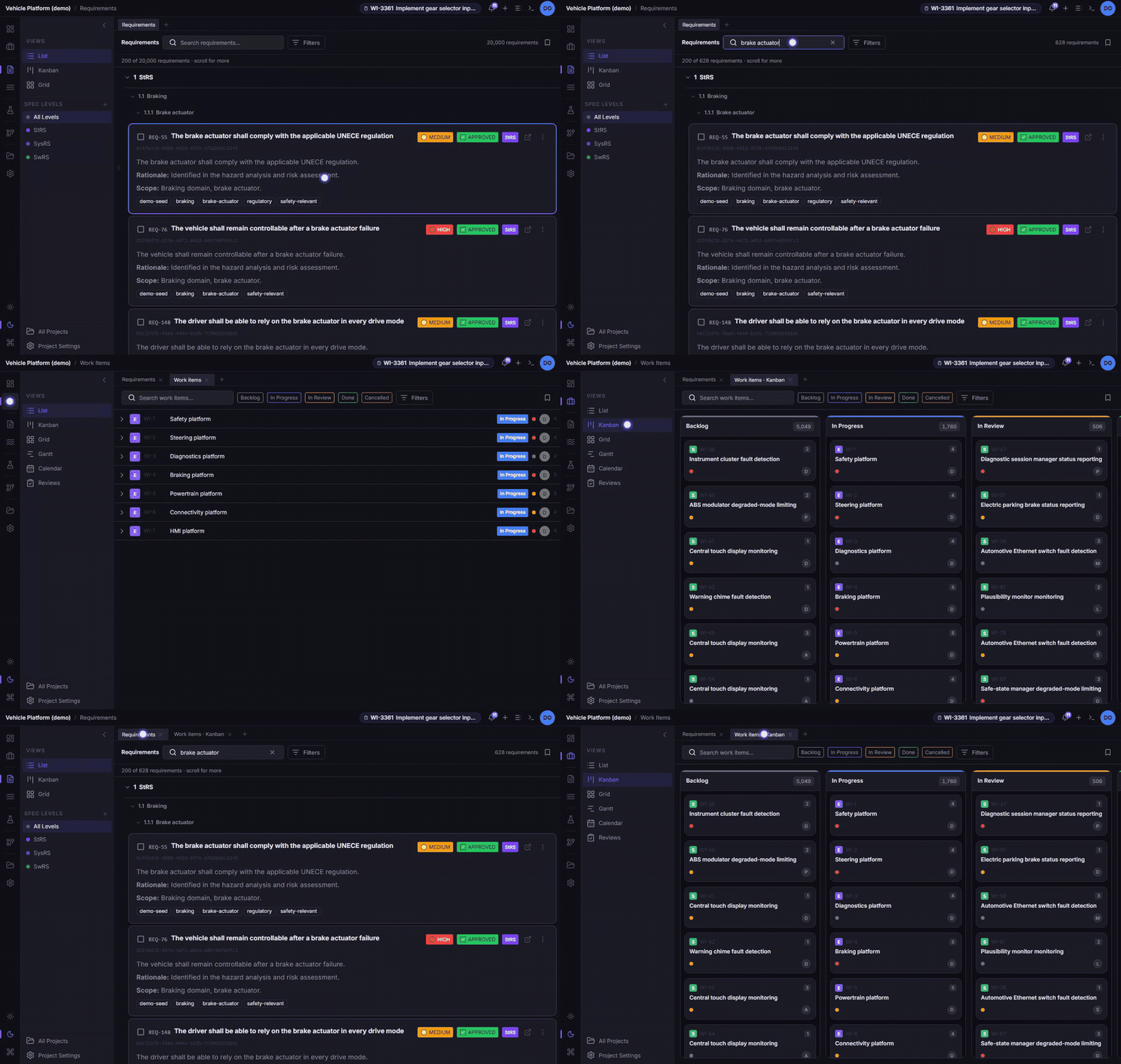
Tabs now run across the top of the main area. There is one by default, and it works as the app always has.
- Opening a tab. Press + to open a copy of the view you’re on, then change the copy without losing the original.
- What each tab remembers:
- where you are;
- its filters, search and sort;
- the rows you selected;
- its Kanban layout;
- how far you scrolled.
- Graph tabs. Each one keeps its own mode, focus and filters, so a focused graph and the whole-project graph can sit side by side.
- Back and forward stay inside the tab you’re in.
- Renaming and closing. Double-click a tab, or press F2, to rename it. Close it with its × or a middle click.
- Desktop shortcuts. The desktop app takes your browser’s tab shortcuts:
- Ctrl+T opens a tab;
- Ctrl+W closes one;
- Ctrl+Shift+T reopens the last one you closed;
- Ctrl+Tab and Ctrl+1 to Ctrl+9 switch between them.
- Remembered. Tabs are kept for each project on your device, and come back after a reload.
Edit two items side by side
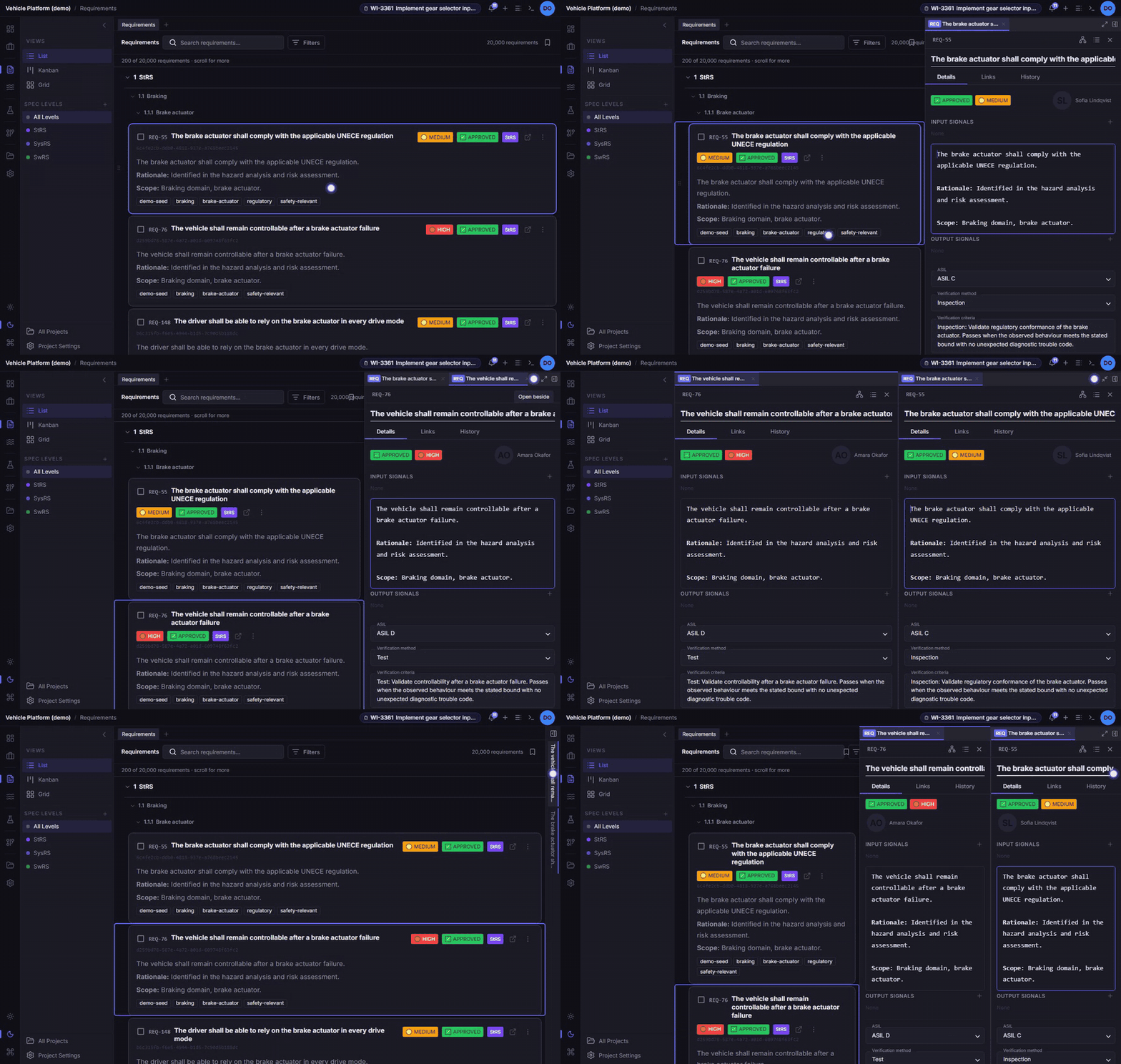
- Splitting. The side panel can show two items at once. Drag one of its tabs onto the Open beside area that appears at the panel’s left edge, or press the split button at the end of its tab strip.
- Two halves. Each half has its own tabs, and you can drag tabs between them.
- Where items open. An item opens in the half you last worked in. One that is already open is shown where it is, not opened twice.
- Hiding. The panel’s hide button, or Ctrl+\, shrinks it to a narrow rail that keeps every tab. Click a tab on the rail to bring the panel back.
- Widening. The panel can widen over the main area for focused editing. The view underneath keeps its place.
- Width. There is no longer a maximum width. Drag the panel as wide as you like; past a point it widens instead of squeezing the view.
Find anything from the graph
- Finding. The search field above the graph now finds requirements, test cases, signals and work items anywhere in the project, including ones the current view doesn’t draw. Pick one and the graph focuses on it.
- Filters. The graph’s Filters menu has a text filter, plus a filter for each kind of item, using the same fields as that kind’s list.
- Separate from your lists. The graph keeps its own filters, so filtering it no longer changes the Requirements list, and the reverse.
- Locate in graph. In any item’s detail panel, Locate in graph now always opens the graph focused on that item, even in a project too large to draw at once.
Set workflow transitions in one grid
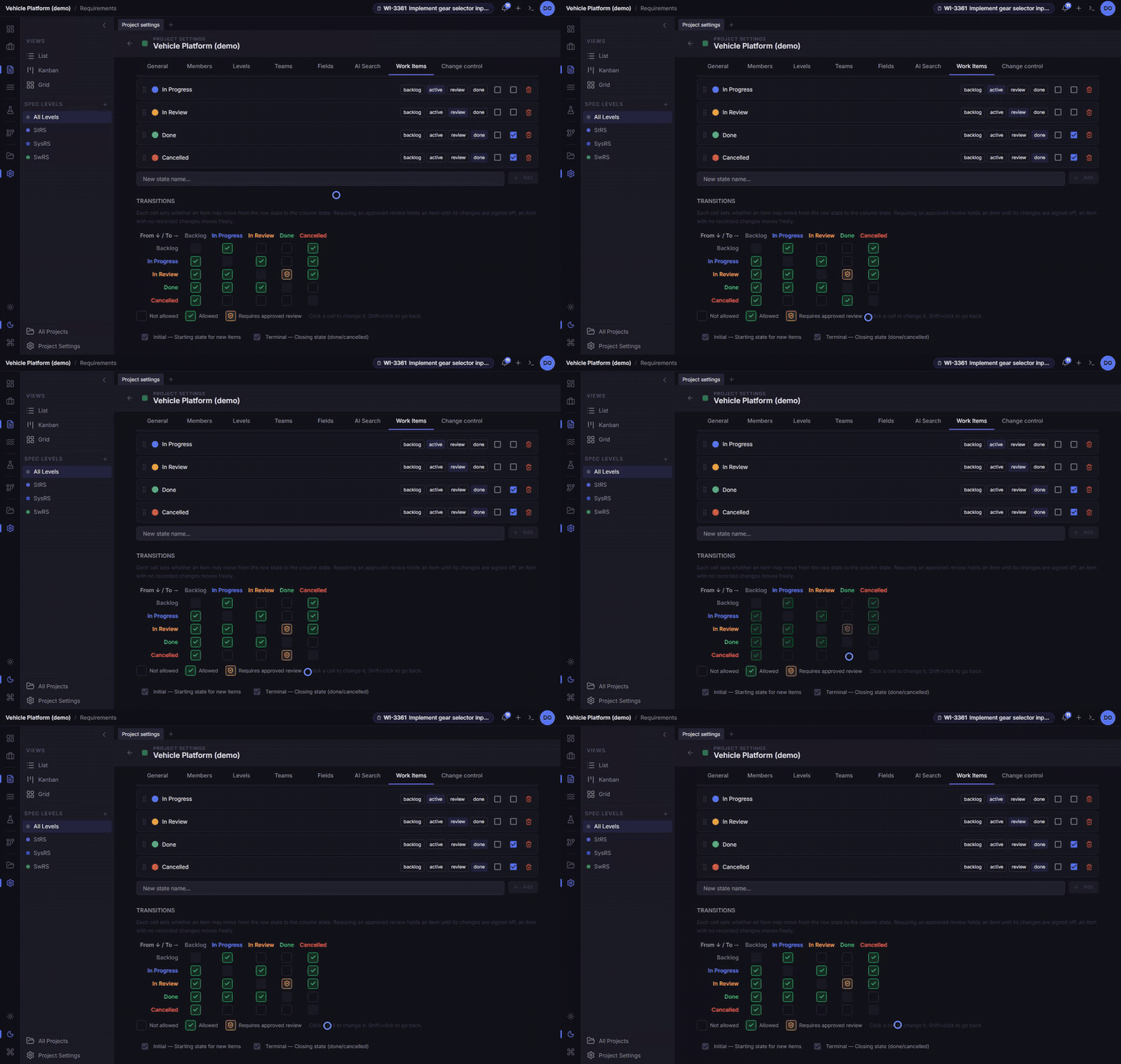
- Where. In Project settings → Work Items, each cell of the transition grid now says, in one place, whether items may make that move:
- not allowed;
- allowed;
- allowed once its changes are approved in review.
- Changing a cell. Click it to step forward, Shift+click to step back. A legend under the grid names the three.